> For the complete documentation index, see [llms.txt](https://docs.earthindex.ai/llms.txt). Markdown versions of documentation pages are available by appending `.md` to page URLs; this page is available as [Markdown](https://docs.earthindex.ai/concepts/reference-layers.md).
# Reference Layers
We use the term "reference layer" to refer to geospatial data that provides additional context to assist in the labeling process. This could be:
* Infrastructure like roads, train lines or hospitals
* Administrative boundaries like Indigenous land borders, park boundaries, or other protected land
* Previously surveyed or collected datasets
* Or any other geospatial information that helps provide context to the project
### Limitations
Currently, reference layers have the following limitations:
* Only GeoJSON files are supported. Most GIS systems should be able to output this format. You can test your files at [geojson.io](https://geojson.io/)
* Files must be less than 10MB in size
* You are not able to edit features or geometries that you upload.
## Managing Reference Layers
### Adding a Reference Layer
Reference layers can be added by opening the layer panel on the right side of the screen.
1. Click on the "New Overlay" button
2. Select the GeoJson file you want to upload from your computer and submit
After upload, there will be a short delay as the file is optimized for visualization on the web.
### Updating Reference Layers
You can edit the name of the reference layer by simply clicking on the existing name and updating it in place.
The display color for each layer can be changed by clicking on the color next to the name and selecting a new one from the color picker.
Both the name and the color choices will be saved as part of your project and will be visible if you make the project public.
### Removing Reference Layers
Reference layers can be removed from a project by clicking the 3 dots next to the layer and clicking "Delete Layer". Once removed, a layer cannot be added back without re-uploading. To simply hide the layer instead click the eye icon next to the layer.
## Working with Reference Layers
One of more interesting uses of reference layers is using them to identify known examples of what you are looking to find. This allows a user to label a large number of positive points without manual review of each point, quickly building up a power mode.
Let's walk through an example below.
#### Starting from Scratch
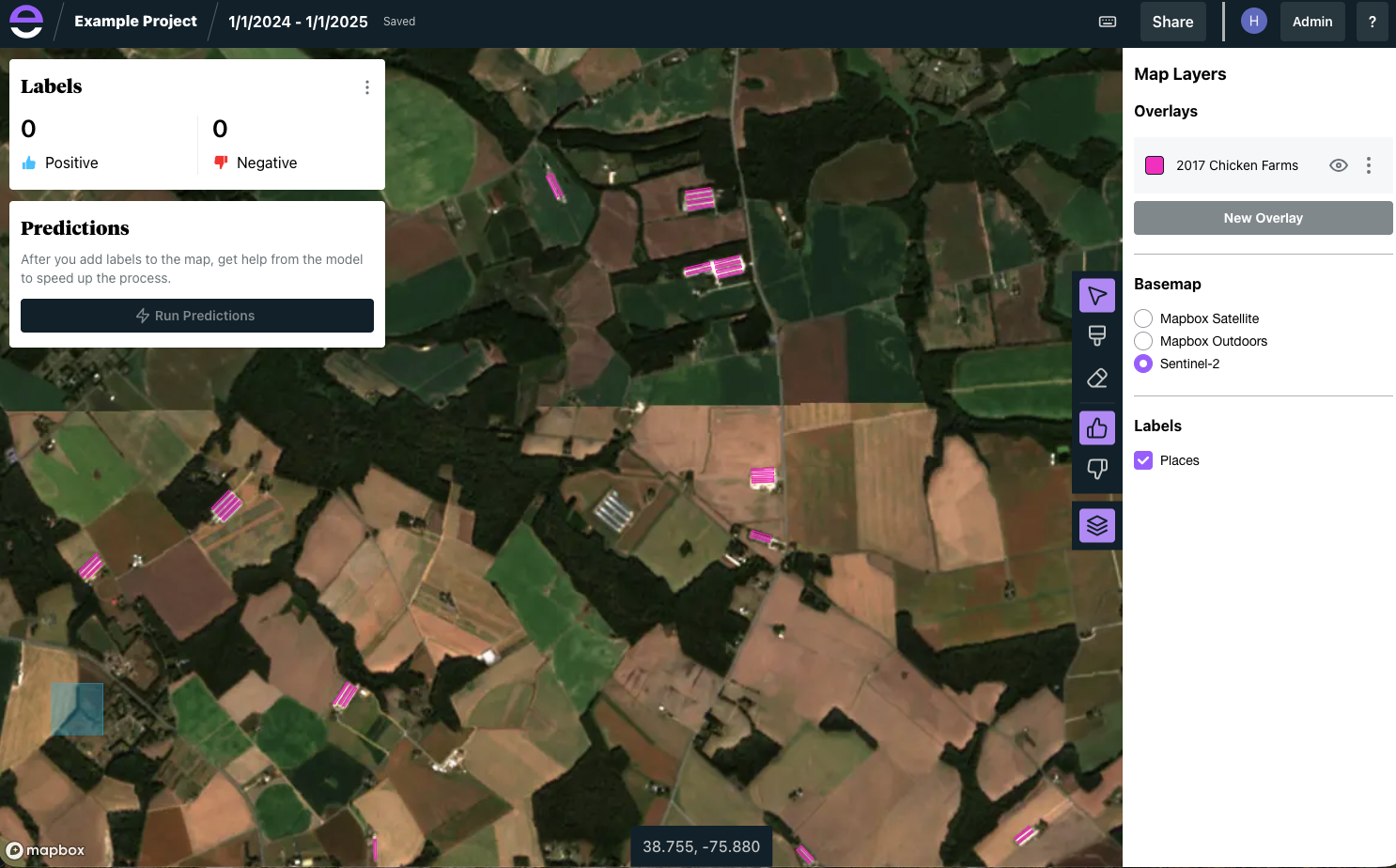
We can see in this project that the user has uploaded a dataset from 2017 that outlines known chicken farm buildings. We can also see a new building complex in the middle of the screen that appears to have been built after the data was collected.
This is a great example of how you can leverage an existing dataset to find new data in Earth Index.
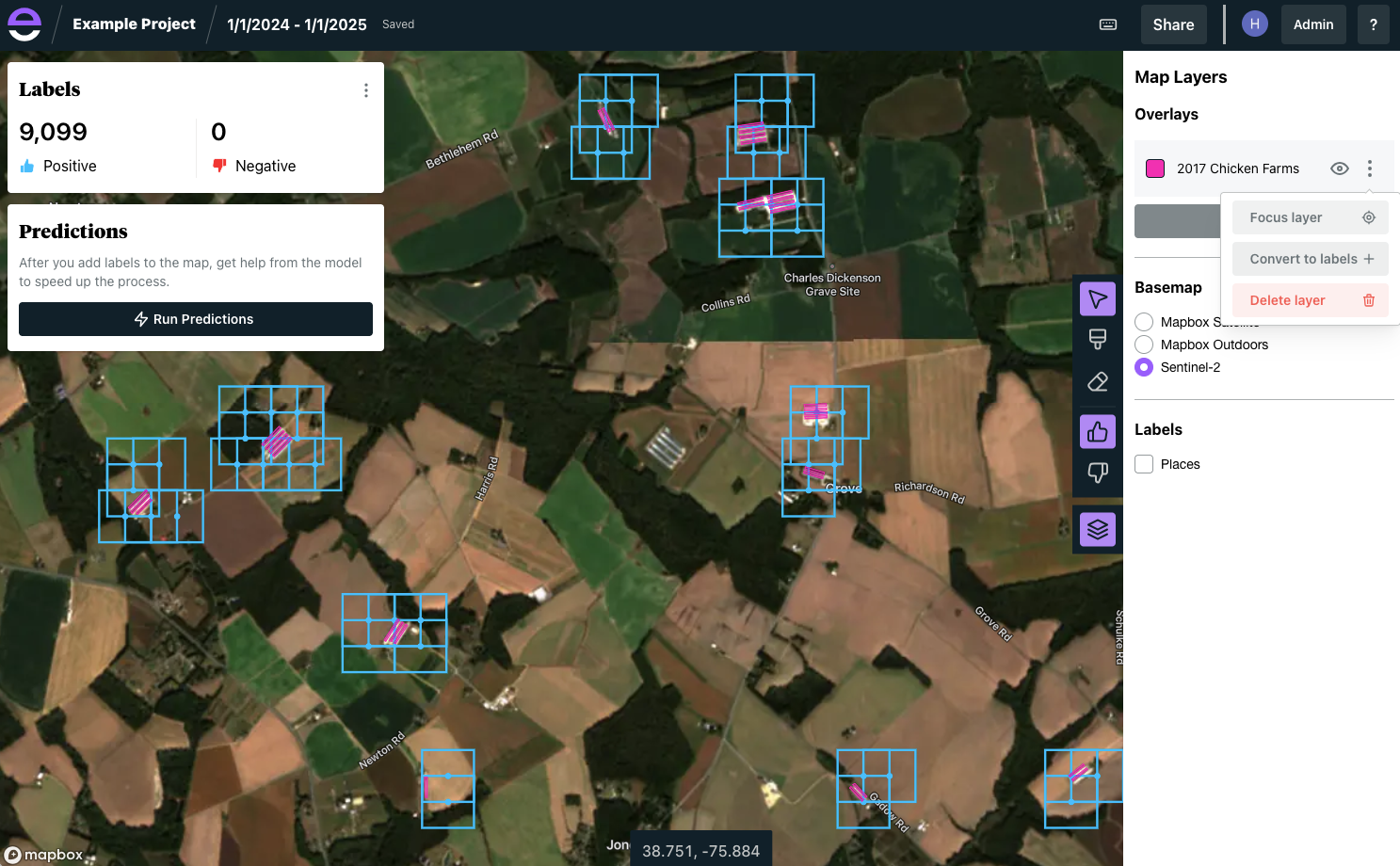
First, lets convert all of the known buildings into positive points. Click on the 3 dots next to the layer and then click "Convert to labels"
Now the grid cells that overlap with features in the reference layer file have been marked as positive points.